Running Llama 3 Locally on Apple Silicon With Ollama
A complete walkthrough for running Llama 3 locally on your Mac with Ollama.
Running Llama 3 on a Mac comes down to two decisions, not twenty. Picking the right variant of the model for the job means also picking a size that fits inside the unified memory the specific Mac actually has. Everything past that is a handful of terminal commands. The rest of this piece works through both decisions in order, then gets into the mechanics of why a Mac handles this workload differently than a PC with a graphics card ever could.
Meta released the original Llama 3 family in April 2024 and has not slowed down since: Llama 3.1 followed, then Llama 3.2, then Llama 3.3, and eventually Llama 4. Four distinct sub-families now sit under the Llama 3 name, and each one answers a different question. Text-only by design, Llama 3.1 scales up to a massive parameter count and carries a 128K context window; its 8B variant is the default model for anyone starting out. Llama 3.2 adds real multimodal vision support in its 11B and 90B sizes, and also ships tiny 1B and 3B text-only models built for phones and low-power hardware. Llama 3.3 is a 70B model tuned hard for efficiency, and it functions as the practical ceiling for what a local Apple Silicon Mac can run well. Llama 4 moves to a mixture-of-experts design with context windows reaching an enormous size on paper, which sounds remarkable until you realize almost no consumer machine has the memory to load it.
The decision rule is simple enough to memorize. Everyday text tasks call for Llama 3.1 8B or, on a machine with enough memory, Llama 3.3 70B. Anything involving images alongside text points to Llama 3.2 Vision. An 8GB Mac has no business running anything past Llama 3.2 3B. And regardless of size, always reach for the instruct variant of a model, never the base version: base models are trained to complete text, not follow directions, so a prompt like "summarize this contract" will get you a continuation of the sentence, not a summary.
Llama gets the spotlight here because of what surrounds it: rival model families have merit too. Nearly every local-inference tool defaults to Llama first, tutorials assume it, and the fine-tuning community around it is enormous and still active. That ecosystem weight is itself a reason to start there.
Unified memory's effect on running large models on a Mac
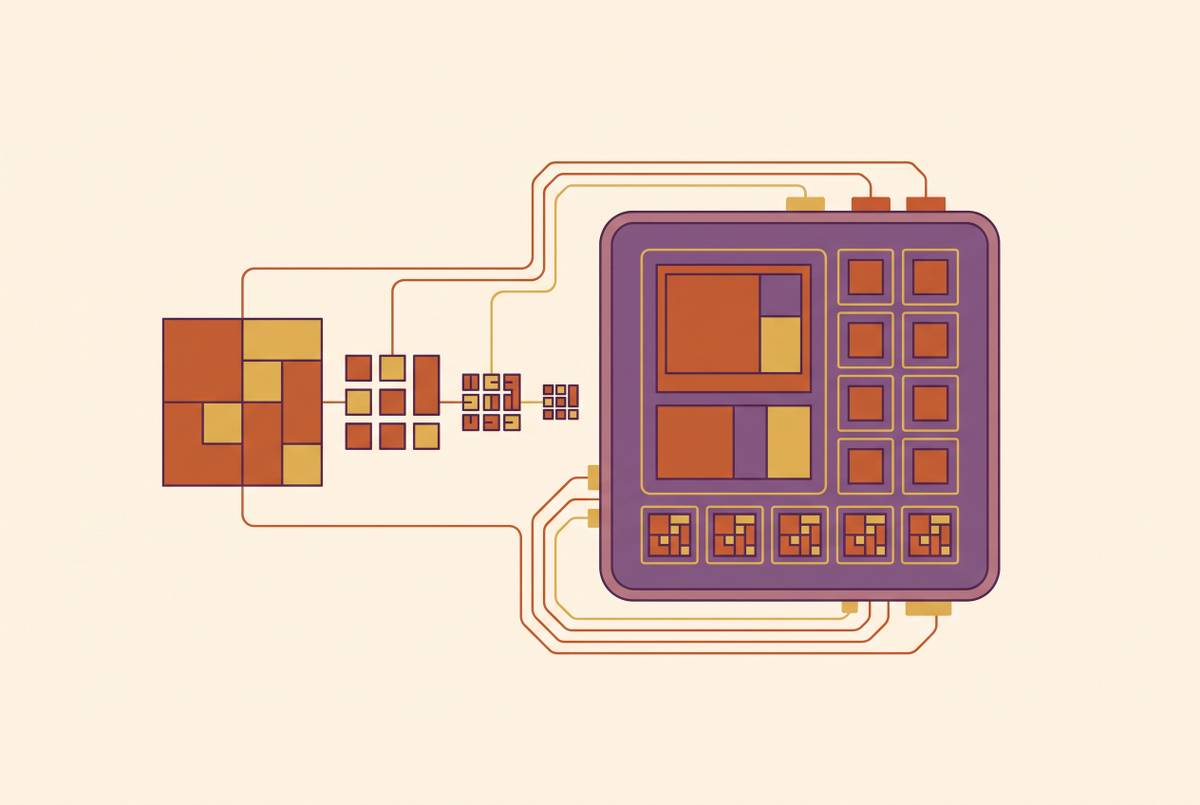
On a Windows or Linux machine with a discrete GPU, a model has to fit inside VRAM, and VRAM on consumer cards tops out at a fairly modest ceiling. Worse, the weights have to travel over PCIe to get there, which adds latency and a hard limit that no amount of system RAM can fix. Apple Silicon sidesteps the whole problem by giving the CPU and GPU one shared pool of memory at full bandwidth. Nothing gets copied across a bus, because there is no second pool to copy it to.
By PC standards, the result borders on unfair. A MacBook Pro with 64GB of unified memory can load a quantized 70-billion-parameter model and start producing tokens within seconds, a workload that would choke or simply refuse to load on most consumer graphics cards on the market.
Token generation in a transformer is a memory-bandwidth problem before it's a compute problem: the chip spends most of its time moving weights, not doing math on them. Bandwidth numbers affect token generation speed here more directly than raw GPU core counts do. M-class Pro chips deliver approximately 273 GB/s, the base M5 is 153 GB/s (a 30% step up from the M4 base chip), and the M5 Max tops out at 614 GB/s. The M5 generation also brings GPU Neural Accelerators that speed up prefill, meaning time-to-first-token drops noticeably. But the actual word-by-word generation speed tracks bandwidth, and bandwidth only inched forward from M4 to M5 at the low end. A faster chip generation doesn't automatically mean proportionally faster chat responses once the model is already running.
What Ollama's Mac backend changed in early 2026
Ollama is an open-source project, released under the MIT license, first shipped on July 8, 2023, and built by Jeffrey Morgan and Michael Chiang using a mix of Go, C, and TypeScript. It runs on macOS, Linux, and Windows, and it exists to take the friction out of running a local model: one install, and it handles downloading weights, picking the right quantization, wiring up GPU acceleration, and exposing a REST API on port 11434 that mirrors the OpenAI Chat Completions format closely enough that most existing tooling just works against it.
The project has scaled fast, raising $65 million in funding and growing to a large and rapidly expanding user base. But the more consequential story for anyone on a Mac is what happened to the backend in Ollama 0.19: a preview MLX backend arrived, sitting alongside the existing llama.cpp Metal path, and on capable hardware it requires opting in through an environment variable and is not active by default.
The gains are not subtle. Ollama's own measurements show decode speed moving from roughly 58 tokens per second to about 112 tokens per second on the same hardware, close to a full doubling, with no change to the model itself. Separately, MLX runs 30 to 60% faster than llama.cpp's Metal backend on M5 hardware overall, and roughly 3 to 4 times faster specifically on prompt processing.
There's a catch, and it matters. The MLX path needs at least 32GB of unified memory to engage. An 8GB or 16GB Mac keeps running on the original Metal backend, unaffected, neither slower nor faster than before, just without the new gain. So the long-standing complaint that Ollama runs sluggishly on a Mac, which was fair criticism through 2025, is largely out of date now for any 32GB-or-larger machine running Ollama 0.19 or newer. And getting the full benefit of the M5's Neural Accelerators on prefill specifically requires the MLX backend paired with macOS 26.2 or later; llama.cpp's Metal backend had not added support for those accelerators as of mid-2026.
Installing Ollama and pulling Llama 3.1 8B: the actual commands
Two ways in. Homebrew users run brew install ollama. Everyone else grabs the macOS app directly from ollama.com. Either path lands in the same place.
From there, pulling and running Llama 3.1 8B takes two lines:
ollama pull llama3.1
ollama run llama3.1
The pull downloads the 8B model at roughly 4.9GB. The run command drops into an interactive chat session, and if the model hasn't been pulled yet, it fetches it automatically first. Metal and MLX GPU acceleration kick in without any flags or configuration; there's nothing to toggle for the common case.
A few CLI commands are worth keeping on hand. ollama list shows what's already been pulled. Running ollama run llama3.1:8b --verbose prints extra output including performance details. Inside a chat session, slash commands let you adjust behavior on the fly: /set parameter temperature 0.7 changes how conservative or freewheeling the output is, /set parameter num_ctx 8192 widens the context window, /show info prints model details, and /bye exits.
Confirming GPU acceleration is genuinely active takes one look at the verbose output: the verbose output will confirm whether Metal or MLX picked up the chip correctly. When it's working, expect somewhere between 20 and 60 tokens per second depending on which chip is running it. If the number is instead in the 1 to 5 tokens-per-second range, the model has fallen back to CPU-only execution, and something in the setup needs a second look.
Matching model size and quantization to how much RAM you have
macOS caps how much of the unified memory pool the GPU is allowed to touch, reserving a portion for the OS and CPU. Model weights plus whatever the context window needs have to fit inside that share, and if they don't, macOS starts swapping to disk. Disk swapping doesn't make inference slow, it makes inference impractical, sometimes to the point where a chat response takes minutes instead of seconds.
Quantization is the lever that controls how much room a model needs. Ollama uses the GGUF container format, created in 2023 by Georgi Gerganov and the llama.cpp team, and a single GGUF file bundles everything needed to run the model with no separate config files to hunt down. Within that format, Q4_K_M is the aggressive option: smallest footprint, some real quality loss. Q5_K_M sits a step up, better output quality for a modest size increase. Q8 is close to lossless but takes up meaningfully more space. FP16, full precision, isn't realistic on consumer hardware at all, since a 70B model at FP16 simply won't fit in any Mac's memory currently shipping. For most everyday tasks, the quality difference between Q5 and full FP16 isn't one most people would notice, which makes Q4_K_M or Q5_K_M the sensible default rather than a compromise.
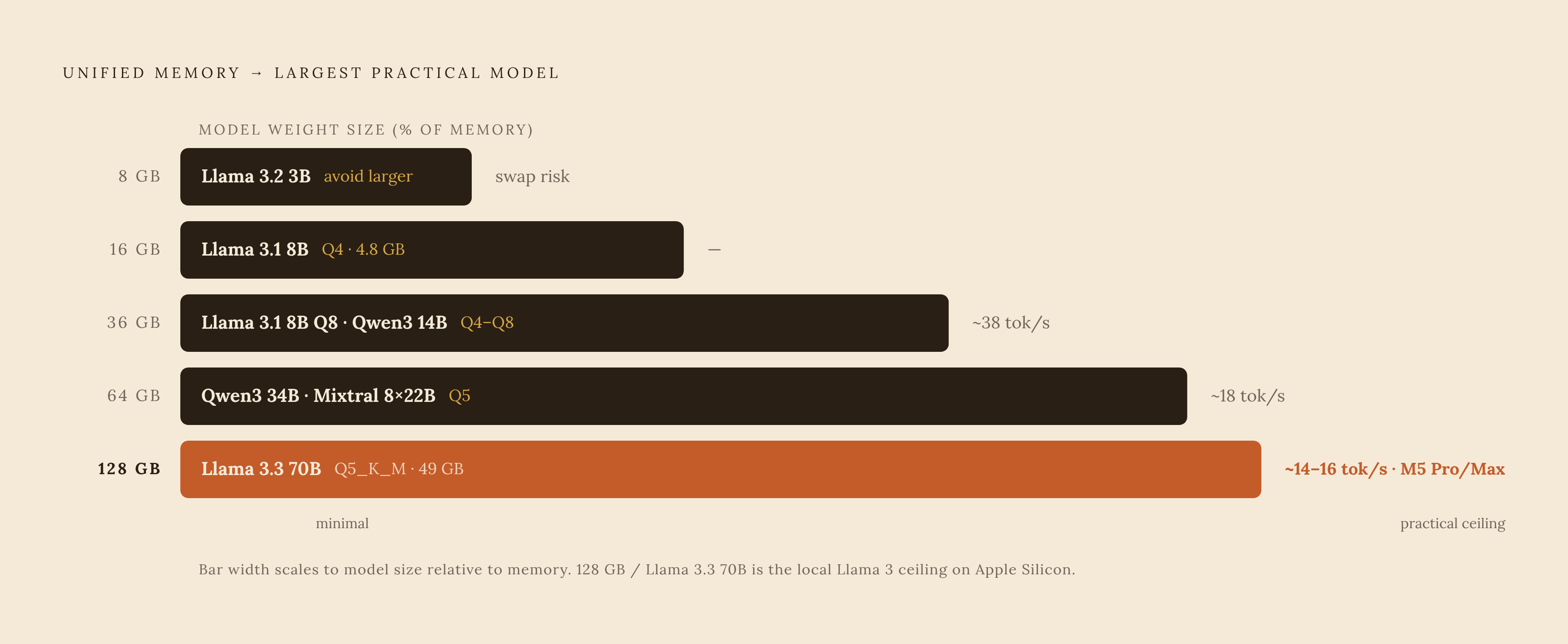
Matched against actual memory tiers, the picture looks like this. An 8GB Mac should stay at the smallest available sizes, such as Llama 3.2 3B, since larger models will push the system into swapping. 16GB is the realistic floor for Llama 3.1 8B: at Q4 quantization the weights alone run about 4.8GB, and the rest of that 16GB covers context and overhead with some room to spare. At 36GB, Llama 3.1 8B at Q8 runs around 38 tokens per second on a 36GB Mac, and Qwen3 14B at Q4 is a solid alternative in the same tier. At 64GB, Qwen3 34B at Q5 runs around 18 tokens per second on a 64GB Mac, and Mixtral 8x22B at Q5 is another option to try. At 128GB, Llama 3.3 70B at Q5_K_M (49GB total) runs about 14 tokens per second on M5 Pro and 16 on M5 Max, leaving roughly 70GB free for context and everything else the system needs. Q8 quantization of the same model, at 74GB, also fits comfortably on an M5 Max.
That 49GB figure for Llama 3.3 70B at Q5_K_M represents the largest mainstream Llama model that fits on a 128GB Mac without a fight. It represents the largest mainstream Llama model that fits on a 128GB Mac without a fight, and for now, it's the practical ceiling for what local Llama 3 inference looks like on Apple Silicon.
Verification, context tuning, and the API once the setup is running
Once a model is downloading and responding to prompts, confirm that the GPU, not the CPU, is doing the work. That verbose flag from earlier, ollama run llama3.1:8b --verbose, is the fastest way to check: watch the tokens-per-second figure in the verbose output to make sure it is in the expected range for the chip in question rather than the much slower range typical of a processor handling the work alone.
From there, context window size is the setting most worth tuning by hand. The default context isn't always sized for the task at hand, and /set parameter num_ctx 8192 (or higher, memory permitting) gives a session more room to hold onto earlier turns of a conversation or a longer document. Temperature is the other lever most people reach for early, trading consistency for creativity or vice versa depending on the task.
For anything beyond interactive chat, Ollama's REST API on port 11434 is what turns this from a toy into infrastructure. Because it mirrors the OpenAI Chat Completions format, most existing client libraries and scripts built against OpenAI's API can point at a local Ollama instance with little more than a URL change, which is arguably the most underrated part of the whole setup: a fully local model, running on hardware already sitting on a desk, answering requests through an interface the rest of the ecosystem already knows how to speak to.